
If like me for some reason you have to change your AppleID email address you could well discover that this is an absolute nightmare.
To do this you need to go to : https://appleid.apple.com/
And then you click on ‘Manage Your Apple ID.’

From here you can ‘Edit your Apple ID and Primary Email Address.’
It should be a case of changing your email address and saving it. For me and many others though that is not the case.
– Perform a FULL BACKUP using both iCloud and a physical backup on iTunes –
To make sure all traces of your old Account are removed before you change your Apple ID I suggest you log out of all Apple Services you have...
1. iMessage (on Macs, iPads,iPhones, iPods everything.)
2. FaceTime (on Macs, iPads,iPhones, iPods everything.)
3. iTunes (on Macs, iPads,iPhones, iPods everything.)
4. AppleTV, if you have it
5. De Authorise your iTunes on your PC / Mac. (http://support.apple.com/kb/HT1420)
6. As we all have different setups you may have more (or less) things using your AppleID, log out of them ALL
– A Full List of Programs that use your AppleID can be found at : http://support.apple.com/kb/HT5616?viewlocale=en_US&locale=en_US –
7. Delete the iCloud Account from your iPhone, iPad, iPod etc (Your backups etc are still there on iCloud so don’t panic.)
8. Now here is the one that avoided me for so long, and if you don’t delete this one remnants of your old account will follow your computer, phone, iPad and most annoyingly should you ever need them, your Bankups.
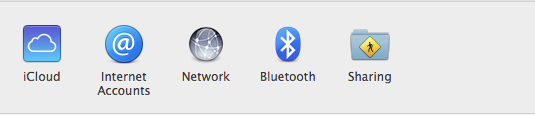
– [FOR A MAC] Go to Applications -> System Preferences -> iCloud

And Sign Out of it.

When you have logged out of all Apple Services now is the time to go back to https://appleid.apple.com/ and change your Primary Email Address and AppleID.
At this point your old AppleID email address will no longer be used by Apple and no services should be still running with it.
Go about your normal tasks and as you use your Apple Products log in with your new Primary email address. Let iCloud continue with it’s auto backups and all should be good. If you logged out of all your programs that old ID should be gone for good.
Learn from my experience, in my instance I forgot to log out of the iCloud on my Mac as well as iMessage. This meant whilst restoring from a Backup I had both AppleID email addresses wanting to be logged in. If you have been in that position it is a nightmare, if you haven’t then pray you never are.
If the worst should happen :
If the worst should happen and you find yourself having to preform a Restore and the backup is looking for your old AppleID here is what you must do…
1. Go to https://appleid.apple.com/ and change your AppleID / Primary email address back to your old one, no need to verify it.
2. Go back to the product your are carrying out the restore on, enter the password.
3. Let the restore work.
4. You may have to do the same again if it asks for your new AppleID details. so log in and change the primary, enter the password on your device and hopefully that will complete the restore.
5. Ensure your AppleID reflects your current email address.
6. Go back to the list above and check them all, your old ID is lurking somewhere and you need to find and bin it!
Finally, here is how Apple Describe the Process in case mine makes little sense : http://support.apple.com/kb/TS5223?viewlocale=en_US&locale=en_US
Good luck and hopefully this will keep at least just one person sane, I can assure you I was not sane!


iOS 7.1.2 install bricked and I’m in this state trying to do an iCloud restore. Unfortunately, at least with the 7.1.2 restore, your worst case scenario didn’t help. Any ideas what else I could try?
I’m not entirely sure what you mean? If you can explain to me in more details the issues I will try my best to help.